How to Edit PDF Files for Free?
Why edit a PDF?
Many of us have encountered situations where PDF files needed to be edited, for different reasons such as correcting some grammar or spelling errors, making changes on the graghic, or copying some specifc content for further usages. This is a very tricky process and one may easily destroy a document in the process of editing PDF files. Some PDF files will even block your access to selecting the text and copying it to another file.
How to edit PDF files?
There are two ways to easily edit PDF files:
- Editing on a PDF directly
- Converting a PDF to an editable file format
Part I. Edit on a PDF directly
You can edit a PDF with Acrobat, provided it has not been protected, or if you have the original authoring password.
While this is mostly easy, some problems might appear. The main problem is the font used. If the PDF file uses a font you do not have, you cannot edit it. Most PDF files use standard fonts, like Arial or Times New Roman. However, many authors can use some other special font for their files. There are thousands of fonts available on the internet today, so which one does the PDF file use? Hard question. The answer is “Only the original author knows”. Getting all the fonts and trying them out is not an option. It can take days to find the right one, and you will probably give up long before you find anything.
Other PDF editing tools:
1. Plug-ins can be installed in Acrobat Professional to enhance its ability to edit objects within PDF document, such as PitStop Professional from Enfocus, and pdfToolbox from callas software.
2. Even though Adobe carefully avoid positioning Adobe Illustrator as a PDF editor, a remarkable number of PDF files can be opened and modified in Illustrator.
3. There are also a number of stand-alone PDF editor applications.
- Enfocus offer Neo, a stand-alone PDF editor that is a lot faster than working in Acrobat. Oris PDF Tuner is another alternative solution that seems to have a good reputation.
- Recosoft also created an interesting plug-in, named PDF2ID, which can convert a PDF file into an InDesign publication.
- Companies who make their money processing PDF files, such as newspapers who need to be able to make small modifications to advertisements, often use the products of OneVision to edit PDF files. These are probably the most powerful editors on the market.
Part II. Convert PDF to editable file format
We all know that PDF files are for viewing not for editing. If you have the original file and want to edit, you can choose to convert the PDF to editable files first.
We recommend PDF files be converted to a TXT, HTML, or other file format before editing them. After the file is edited, it can be saved as an updated PDF file. Below are the steps for converting a file using a software program, Free PDF Converter.
Free PDF Converter is a free but powerful application to convert PDF to other popular formats of files such as editable Text PDF documents or HTML files, EPUB eBooks, common JPG/JPEG images, and even SWF files.
3 Simple Steps to Convert PDF for Editing
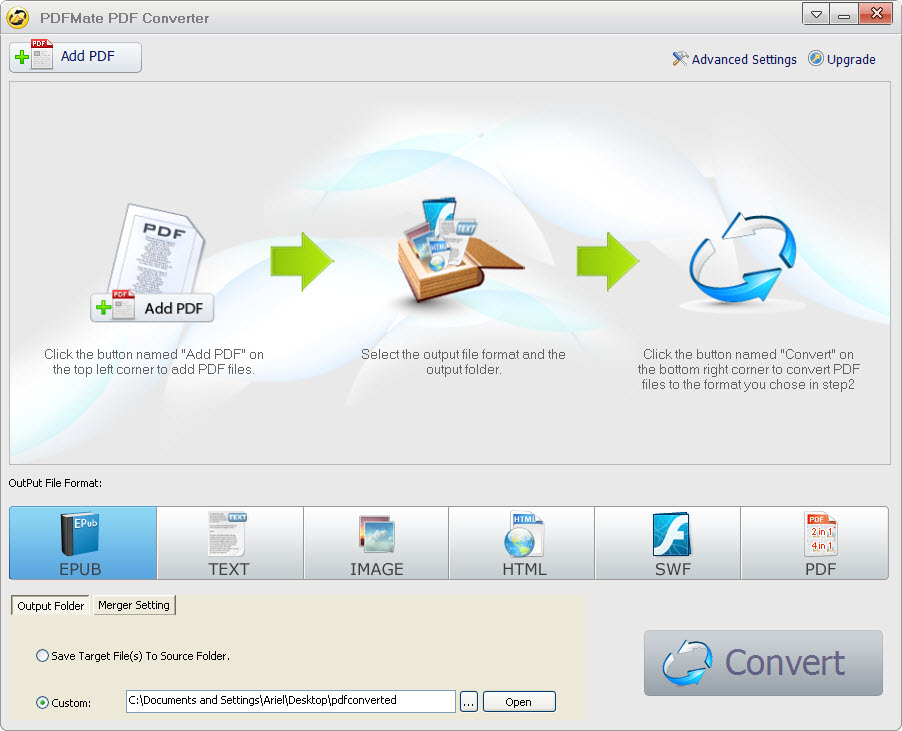
Download Free PDF to Edit Converter, install and run it. View Screenshot image.
1. Click the button "Add PDF", and add the files you want to convert.
2. On the pane of the output file formats, Choose editable "Text" or "HTML" or "Doc" as the output format:

3. Click the button "Convert", and your PDF to Edit conversion will be finished within seconds.
Note: Free PDF Converter also enables to customize the output settings for your target files when converting PDF to EPUB, HTML, Word or JPG images, such as only extracting some part like text or images from the original PDF files. You can click the button "Advanced Setting" to proceed.